Speaking Boxes Midterm

Thursday, October 9th, 2008

Project team: Jason Safir and Martin Ceperley

Speaking Boxes is more than just a fun device to play with: it proposes a new, animated and efficient way to organize your belongings. The device presents nine small white interactive boxes arranged in a square sequence that automatically opens and closes when the user rotates a bakelite knob. Each box speaks with its own personality such as by the way it opens and by outputting a distinctive sound effect when they open and close. By ascribing separate characteristics and behaviors to each box helps the user recognize the differences between them, which in turn, gives them the capability to quickly identify which box their belongings are organized into. When the knob is turned and settled into a location, a box quickly opens while the preceding one closes. The user may then take an object out of the open (selected) box and place it into another one. All the boxes open and close just by turning a knob. Speaking Boxes may also be portrayed as a creative art piece. For example, a mystery memory game can take place where the user can be instructed to find objects from the boxes based on given clues. All controlled with a knob! By using this device, you can find your items a lot quicker and easier without having to go through the frustration to opening and closing boxes with your hands. Wow, technology is really making us become more and more lazy. If all goes well, we also plan to incorporate a security system into the speaking boxes, where if the user attempts to open any of the boxes with their hands, a buzzer alarm will be heard.


MATERIALS

Nine white boxes
5 solenoids (to open the flaps of five of the boxes)
4 servo motors (to open the flaps of the four other boxes helping us generate a variety of behaviors in the way the boxes open).
4 rods (to be used to open the boxes with the servo motors)
Arduino microcontroller
Breadboard
Bakelite knob
Wood/Old Antique (if we decide to make the device look like an antique)
Speaker/Buzzer
LED’s
Electrical wire
Colored paper (each box will have a different colored base inside of them)

Serial Communication with Flash and Processing

Wednesday, October 8th, 2008

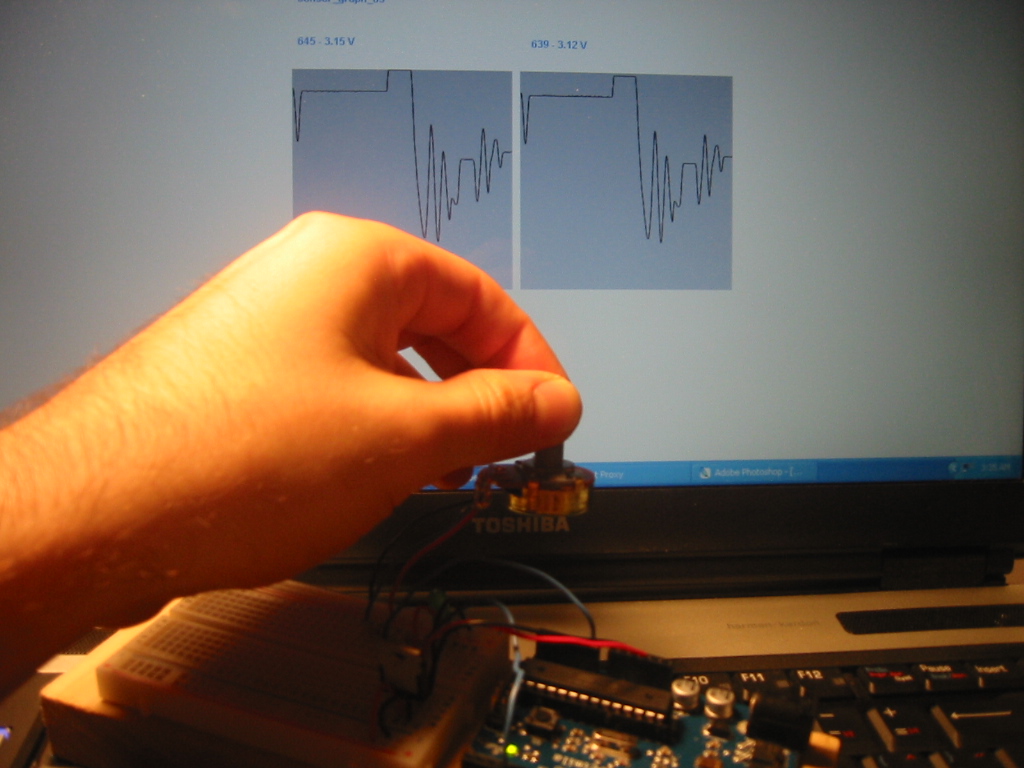
The concept of serial communication adds a whole other dimension to what you can do with the Arduino microcontroller. Communication with other applications is essential for the type of projects I would like to develop at ITP, especially for those that involve interactive video and technological live performance pieces. My excitement in learning the technical aspects of serial communication encouraged me to experiment with with two dynamic programming environments that I enjoy working with: Flash and Processing. The above images is a graph designed in ActionScript 3 that senses and reads the output values from two potentiomotor’s.  Very useful in analyzing the behavior of inputs!

Next, for fun I wanted to create a simple application in Flash that changes the color of canvas based on values generated from an analog sensor (in this case a pot). Unlike with Processing, to communicate with Flash you need to marshal between a network and a serial port using the serial proxy terminal. You also need an Actionscript library that sends/receives Arduino commands over a network socket (this is built in into Processing). Here I imported the as3glue library, it works great!

The source code for my little color changing application with a potentiometer.

In Flash, I also experimented with send commands with the Arduino. Here I am toggling an LED on/off with my mouse which is acting as a push button switch.

Experimenting with Tom Igoe’s sensor reading values graph in Processing. Establishing serial communication with Processing  is a lot simpler than with Flash, but is still a useful envioronment to consider in some cases, such as controlling a timeline with an anlaog input. For next week’s serial communication lab, I will experiment with Max/MSP!

3D Mouse Cursor!

Thursday, October 2nd, 2008


3D Mouse Cursor from Jason Safir on Vimeo.

For this week’s lab, my physical computing class was asked to do something creative with a servo motor. Going in to this assignment, I really had no idea what I was creating. One thing I did know is that the idea of controlling a servo motor with a range sensor really excited me.  There are so many possibilities and interesting results that can be achieved by using the combination of these two electronic components. What I have created here is a simple cursor sculpture that responds to the mouse’s position. When the mouse approaches the Parallax Range Sensor, the cursor rotates left, and when the mouse moves away from the sensor, it turns right. The maximum distance that the mouse can be read by the range sensor is 3m.

Observation Assignment Notes

Friday, September 26th, 2008

Click here to view me and Bobby Turnpak’s notes taken from our collaborative assignment …

Lab 3 - Electronics

Thursday, September 25th, 2008

I feel this week’s lab has made me become very comfortable in understanding how electronics in a circuit work. While it was the most simple out of  all the labs we have had thus far, I gave me the opportunity to become more familiar with the common terms used in the physical computing world. It felt inappropriate to light up an LED with a switch without an Arduino micro-controller up until now!

In this experiment, it became obvious that all the LED’s were sharing the same 5V that was being given to the breadboard. As you added one, the intensity of the light became dimmer.

I really like using the multimeter in this type of work; it is a great troubleshooting device. Problems are a normal thing that everyone frequently experiences when working in physical computing. I think in many instances you are more likely to solve a problem quicker when considering to use them in difficult times.

A great exercise to measure how current can be controlled by using a variable resistor such as a pot! I had a lot difficulty setting this simple circuit up for some reason, nothing at all seemed wrong with my setup! Later I notoiced that my DC adapter somehow got unplugged … checking if the adapter is plugged in will now go on my list of troubleshooting steps!

Sensing Rose

Wednesday, September 17th, 2008

For this week’s lab, I was thinking of a meaningful way to use a sensor with a symbolic object. Because all plants and flowers need light to stay healthy and grow, I thought it would be interesting to create a rose that senses that amount of light it requires to stay strong and healthy. I chose a rose because people are generally very responsive to this object.

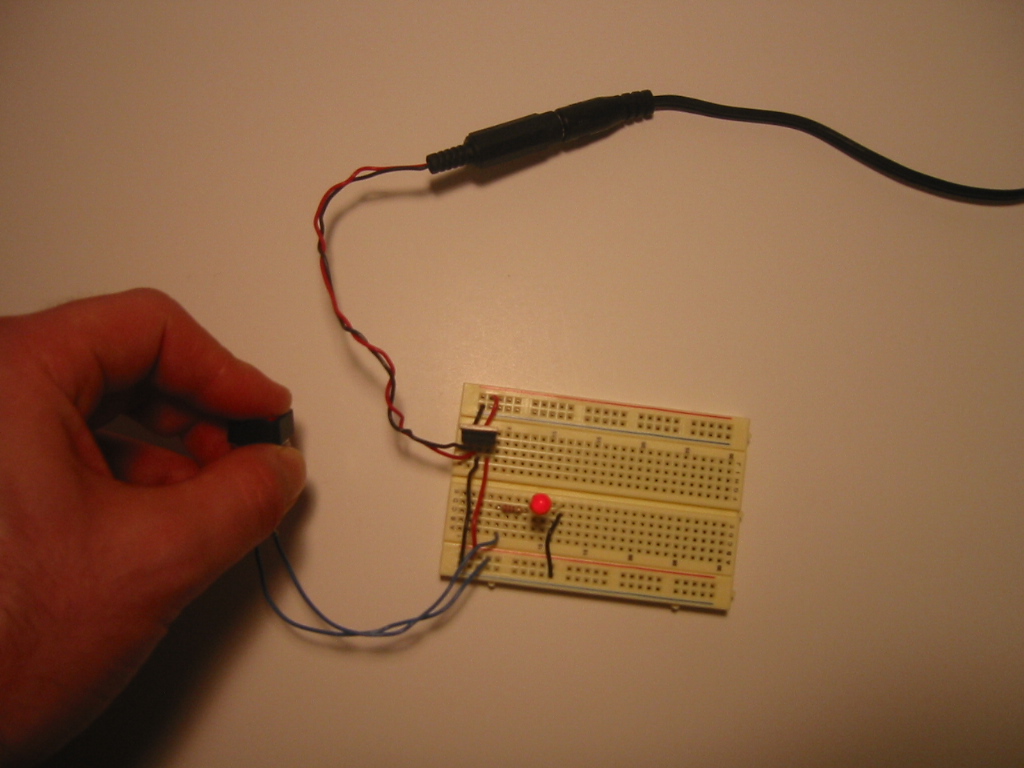
The first step was to create a simple variable switch that controls the intensity of light of a single LED

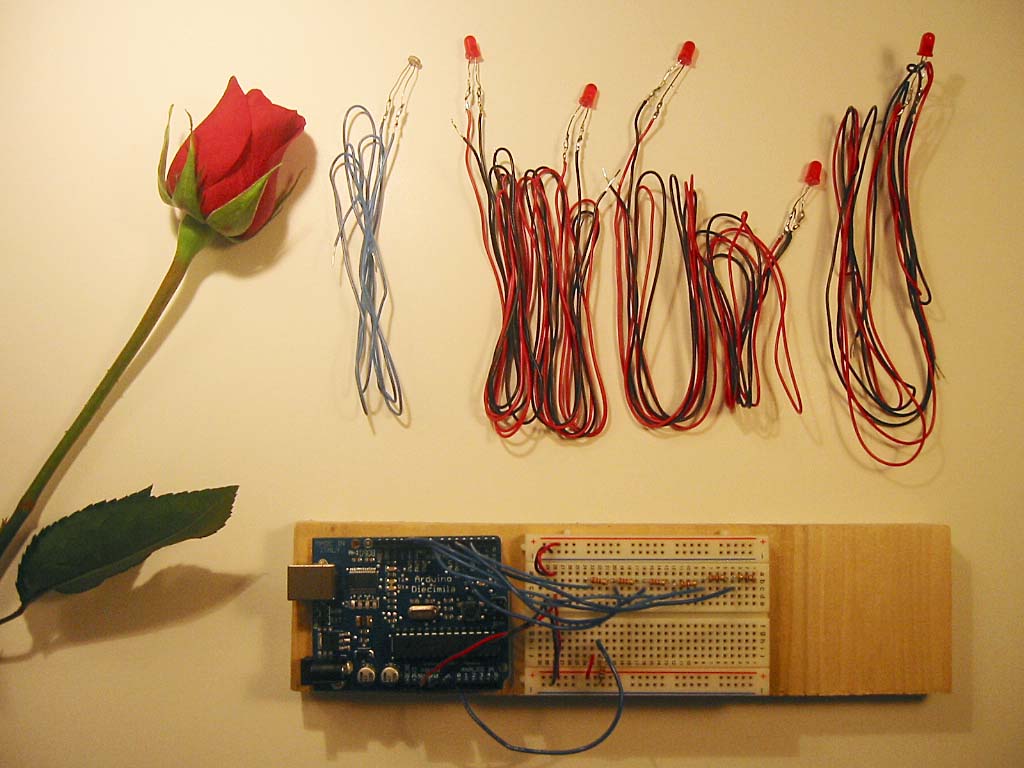
Before I installed the LED’s onto the rose, I wanted to make sure that both my program and hardware setup worked properly. To achieve this, I simply set conditions for each LED. In this prototype, the amount of light detected by the photocell sensor determines whether an LED should stay on or off. I arranged this so the first LED from the left requires the lowest value of light intensity, while the last one on the right requires the highest amount of intensity for it to turn on.

Now the fun stuff! The first step was to insert the photocell sensor into the center of the rose. The slitting of the rose required patience so that I would not damage the flower’s overall aesthetic.

To insert the LED’s into the stem of the rose, I cut holes at every 1.5 inches.  I placed the LED that required the most amount of light intensity at the very top, with the LED that required the minimal amount of light intensity on the last hole. In this image, the rose is receiving a little more than half of the amount of light it needs in order to stay healthy.

Now we know the rose is receiving the recommended amount of light intensity in order to stay healthy!

As an experiment, let’s see how my date responds to me when I give her this sensing rose!

Intro to Physical Computing - Lab 1

Tuesday, September 9th, 2008

This is my first blog post at ITP! For the first assignment in my physical computing class, students were asked to build a simple switch application that toggles the output between two LED’s.

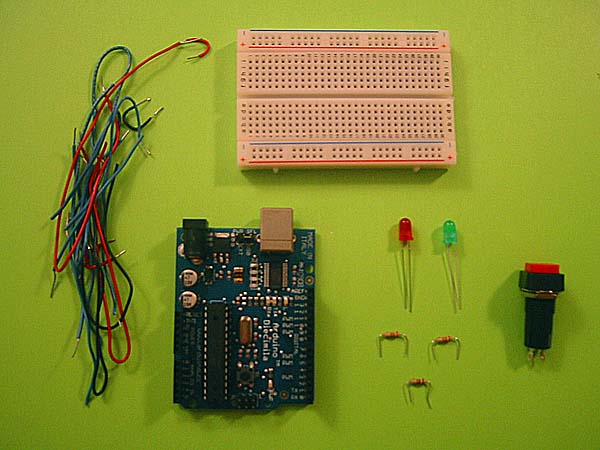
The materials used for this lab include electrical wires, breadboard, an Arduino board, two LEDs, resistors, a switch, usb cord, and my laptop.

The first step was to provide power to the board and then hook up wires into their appropriate pins on the Arduino board.

I soldered the wires onto the switch and then inserted them next to the wire that is connected to the input pin.

Uploading the syntax worked on the first attempt!

Now it was time to get creative by creating my own switch. I looked around in my apartment and came across my Calcium and Magnesium vitamins case and noticed that the cap was off! I thought it would be a fun idea to create a switch that would check to see if the vitamins cap was tightly sealed. This would determine whether or not the vitamins are being preserved.

The first step was to see if tin foil would work for this switch …

It worked! Following this successful test, I glued a small strip of tin foil at the end of the last curve inside the cap. This way the switch would only turn on if the cap is tightly sealed. I glued another piece of tin foil on the last ridge of the bottle. For this to work, both strips of tin foil were attached to the input wires on the board.

The vitamins are not being preserved because the red light is on and the cap is off!

Preserved!