Serial Communication Between Max/MSP and Arduino Using the ‘Serial’ Object

Tuesday, July 13th, 2010

I needed a script to send multiple values from Max/MSP to an Arduino to control a few components. After researching for a viable solution for my application, I had discovered that it is really easy to interface Max/MSP with an Arduino microcontroller by simply using the 'serial' object built-in into Max/MSP’s objects library.

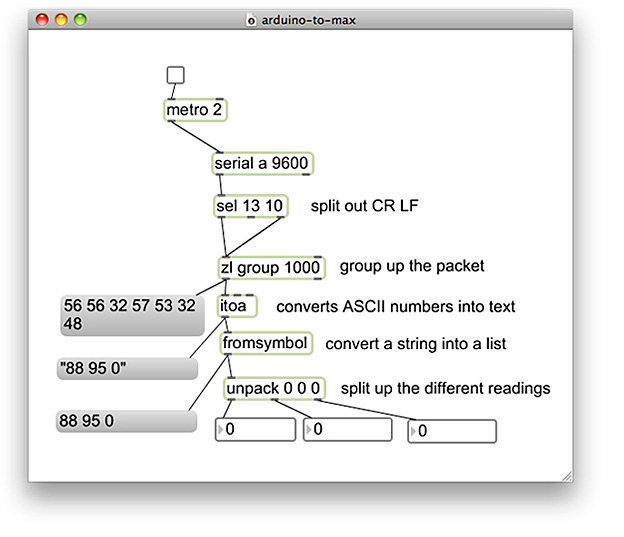
Screenshot of Arduino to Max/MSP Serial Patch

arduino-to-max.maxpat (Save Link As…)

I put together a clean serial Max patch which simply uses the 'serial' and 'unpack' objects to get analog and/or digital values coming from Arduino into Max/MSP. This solutions makes it really easy to get serial values from your Arduino into Max/MSP by splitting up the different readings and outputting them into number-boxes.

To make my Max/MSP and Arduino serial patch work, you will also need to copy and paste a really simple Arduino syntax into a new Arduino sketch I put together below. You may alternatively download my Max/MSP and Arduino sketch.

int val1 = 0;
int val2 = 0;
int val3 = 0;

void setup()
{
  // start serial port at 9600 bps:
  Serial.begin(9600);
}

void loop()
{
  // read analog input, divide by 4 to make the range 0-255:
  val1 = analogRead(0);
  val2 = analogRead(1);
  val3 = digitalRead(2); 

  Serial.print(val1, DEC);
  Serial.print(" ");
  Serial.print(val2, DEC);
  Serial.print(" ");
  Serial.print(val3, DEC);
  Serial.print("\r");
  // pause for 10 milliseconds:
  delay(10);
}

Like any Arduino interface you build, you will need to identify the pin numbers you are using from your Arduino, and determine whether the inputs you are using are sending digital or analog values. The below example is setup to read an analog value from pin ‘1′ and a digital value from pin ‘2′.

 val2 = analogRead(1);
 val3 = digitalRead(2);

The Arduino sketch and Max/MSP patch I put together is setup to recognize three inputs, two analog input values on pins ‘0′ and ‘1′, and one digital input value on pin ‘2′. There is no limit in how many values you can send to Max/MSP from Arduino, on the software side, so feel free to add additional pin recognition lines into the Arduino sketch if your interface requires additional inputs. If you are adding additional inputs, it is important to make sure that the Serial.print(”\r”); line always appears at the end of the loop function, directly before the delay function. This line of code simply let’s Arduino know that we are at the end of the loop.

Max/MSP Unpack Object

For every additional serial value you arrange to send to Max from Arduino, you will also need to add an additional ‘0′ symbol into the unpack object’s input list inside the Max patch. When you input a new symbol into the 'unpack' object, a new outlet will appear beneath the object, which outputs your inputs serial value corresponding to the pin you identified it with in your Arduino sketch. Once you are done tweaking your Arduino sketch, don’t forget to upload it onto your Arduino board!

That’s it! I connected a toggle switch onto the 'serial' object. Press the switch to either turn serial communication on or off between Max/MSP and Arduino.

For instructions on getting started with using an Arduino and a breadboard, I recommend visiting ITP’s Physical Computing resource page, which has many descriptive and illustrative tutorials on getting set up with an Arduino.

The Funny Side of Technology

Thursday, March 25th, 2010

I think it is safe to say that for most of us, our relationship with technology is a love-hate affair. Tech gadgets that start out as luxuries quickly become must-have necessities. I have become hooked on invention, ingenuity, and innovative products over the past few weeks while doing research for my thesis at ITP. The question I keep asking myself is whether these problem-solving products actually make the world a better place?

Read more »

Rusty Business Documentation

Monday, December 21st, 2009

Presented at the ITP Winter Show 2009 and NIME 2009, Rusty Business is a video sequencer that produces electronically controlled cartoon antics using large inflatable hammers.

0_DSCN2350 0_DSCN2458 0_DSCN2397 0_DSCN2430 0_DSCN2345 0_DSCN2390 0_DSCN2318 0_DSCN2433 0_DSCN2432 0_DSCN2381 0_DSCN2431 0_DSCN2389 0_DSCN2404 0_rusty_and_kids 0_DSCN2351 0_DSCN2436 0_DSCN2394 0_DSCN2403

A database of slapstick comedy gags are executed when inflatable hammers hit push button switches. The interactions performed by the users handling of the hammer produces a unique visual and auditory experience onto the projected montage displays. Every hit from the inflatable hammer triggers a different, unexpected and shocking reaction from the character, conveying his struggles with work, sickness and modern day insanities.

Read more »

Memory Box

Thursday, February 26th, 2009

The box, fashioned from wood salvaged from the home where I grew up, holds and preserves memories from my youth.

Memory Box reveals the recollections I have from my childhood through an interactive memory box. The memory box gives the user the ability to discover my childhood past through a montage of personal photographs, depicting images of my youth and significant others in my life. By utilizing these historic images as miniature push button switches, distinctive sounds and LED lights promptly respond to the user’s input. These animated responses reflect my own personal impression of the selected images based on my memories of them.

Stir it Up!

Saturday, January 31st, 2009


Stir it Up! from Jason Safir on Vimeo.

This was a quick physical computing improvisation assignment I did for my Networked Objects class. The idea was to be able to control a video by stirring a coffee mug. Random, huh? We do very weird things with technology at ITP!

The Joy of Technology

Tuesday, December 23rd, 2008

The Joy of Technology is a playful video installation that uses both humor and drama to emphasize our intimate relationship with technology. The satirical character inside the cardboard television set responds to the user’s operation of technology. An electronic razor grows hairs on his face, a pencil sharpener rotates him and tears his shirt, a stapler pokes staples onto his forehead and leaves shatters all over the television glass, and a blow-dryer rotates the screen. All these actions affect the character’s overall appearance once all the technologies are shut off. In addition, the character can also be placed into different settings by turning the television’s rotating knob. Some of the programming that the character is placed into includes a news broadcast, a courtroom and outdoor settings.

Jason Safir giving a live demonstration of his interactive television at ITP.

The main character always appears lost and has lost control of himself through the technology around him. Watching the main character being trapped in an endless, repetitive loop makes his pointless actions and gestures hopeless and neurotic. The piece projects humor and irony throughout the user’s experience by implementing opposite feedback from common technology we use everyday.

FUTURE DEVELOPMENTS
- A robotic television that vibrates and rotates. Also, an antenna that moves when there is activity inside the screen.
- Development of character and channels: more channels that individually respond differently to each device. More dynamic animations.
- Randomized effects implemented by each technology rather having them all pre-determined and edited.
- A more polished cardboard box television design and more interesting placement of props.
- Ability to adjust the depth of field (blurring) of the screen when increasing and decreasing the intensity of a dimming lamp.
- More technology!


Sharpening character

Staples and shatters

When the screen is rotated upside down with the blow dryer, nails fall down!


Electric razor static


Orlando’s courtroom

TECHNICAL DETAILS
The installation uses serial communication between Arduino and Flash using the as3Glue library. To make each device trigger an animation, I used Phidgets current sensors to detect how much voltage is coming from each device. Conditions were placed with these values to change the character’s overall appearance once these devices were shut off. Other physical computing components used were a potentiometer, LEDs, miniature vibration motors placed inside the box, a subwoofer, speakers and a flat screen monitor.


Phidget current sensors detecting the voltage from the razor, sharpener and blow dryer.

All animations were recorded in real-time behind a green screen and then were traced with a fine liner pen using a light box. These selected stills were then scanned and converted into vector graphics using Illustrator and then colored in Flash. This lengthy process helped me achieve the vibrancy and quality I was looking for in both the character and the environments that he is placed into.


All animation frames were drawn using a fineliner marker and were then vectorized into Flash.

Final Project Update!

Friday, November 21st, 2008

Production for my final project in my physical computing class is going very well and I am beginning to feel excited about it. My concept has changed a great deal since I sketched it out two weeks ago. This evening, I received all the electronic components that I will require for my project in the mail. I just went through some successful tests with the AC current sensors that I will be using for my video installation. It was interesting to see the different feedback I was getting from the different electronic devices that I am considering using. I am looking forward to playing with these values and then develop some dynamic output effects with them. I am also considering implementing homemade devices with some of the sensors that have been introduced to us in the beginning of semester such as photo cells and flex sensors.

Now that I have resolved all the issues surrounding the input aspect of my piece, tomorrow I plan to begin developing the output phase of my project. I have decided that the video projection that I will be using will be all in vector graphics which means I have a lot of drawing to do! The main character I am using is very eccentric and awkward which will add a lot of humor to the piece. I plan to record voices for the cartoon character as well.

That is all I really want to say about my progress for my final project for now. I would like to keep much of what I am planning as a surprise for my final presentation!

DC Motor Lab

Tuesday, November 4th, 2008

chromaCubes

Monday, October 27th, 2008

by Jason Safir and Martin Ceperley

DESCRIPTION

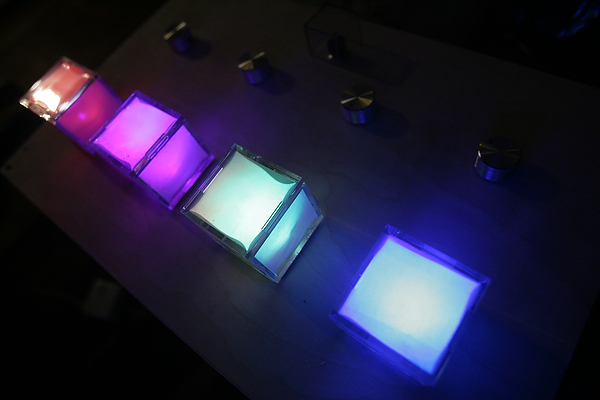
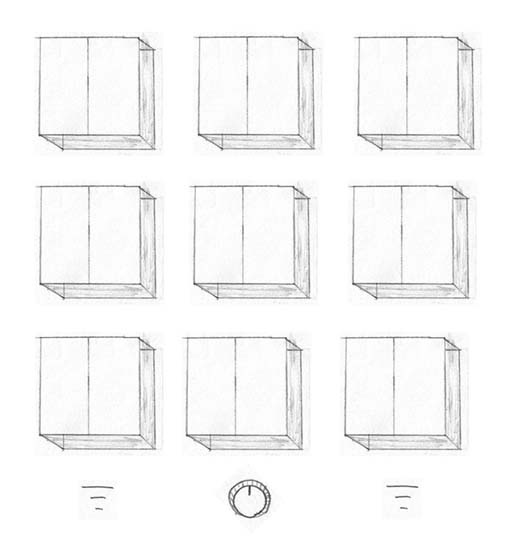
chromaCubes is an interactive color control panel and game for all ages. The intense colors and the visceral reactions they provoke produce a relaxing and entrancing experience. It can either be in free form input mode, where the user is free to move the knobs around the circumference of the color wheel, or a short challenging game. The object of the game is simple: a sequence of colors appear, and it is your job to turn the knobs, rotating through the color wheel, to recreate the colors. The result is an enjoyable, immersive experience as you watch the glowing colors respond to your touch, and are guided by a computer voice (there is no text on the minimalist interface).

VIDEO DOCUMENTATION

MATERIALS & TECHNOLOGY

Four plastic cubes
Sheets of fog transparency paper
Scotch Tape
Double sided Tape
Tools: drill, saw, rulor, scissors, hammer
Krazy Glue
Wood
Small plastic cube
Four potentiometers
Arduino Microcontroller
Four Controlled RGB Leds (BlinkM)
Push button switch
USB Cord
Arduino
Processing

FUTURE PROTOTYPES AND IMPROVEMENTS

- More advanced color patterns- The boxes can communicate in other ways such as by opening and closing
- LED Timer that is arranged in square shape
- Develop different modes (i.e. game mode, input mode, light reaction from RSS feeds)
- More sounds! Such as when the user turns a knob and when light motion occurs
- Since we are playing with lights and diffusion, the use of a photocell (light sensor) can serve as an interesting input. It can also add another dimension such as by acting as trigger instead of a typical push button switch.
- Develop the user interface process
- Design improvement of the push button switch (i.e. text, logo, a cube blinking button)


Serial Duplex

Friday, October 24th, 2008

Using multiple analog inputs can get confusing. This week’s lab emphasized on how to obtain clear values when using three separate inputs. It also introduced the ‘handshaking method’ which is essential in recognizing data from each input that is being sent to and from the Arduino.

A simple setup,  yet I encountered two obvious problems in getting this application to run properly. The first problem I had was with the push button switch. Arduino was not receiving any boolean values from the digital input. This problem was quickly resolbed by replacing the switch with another one. The second problem that I encountered involved forgetting to assign the COMM port in the processing code. This must always be properly identified instead of assuming that processing, or any other programming environment, will automatically detect which port I am communicating with.